 CarTV
CarTVYour code. Your special offer.
Got a CarTV offer code? Follow the steps on your iPhone to view and redeem your offer.
Redeem in three steps
Start in CarTV. Apple will show your offer and ask you to confirm redemption.
-
Open VIP and tap Redeem
Open CarTV, go to Settings and tap CarTV Pro to open the VIP purchase page. Tap Redeem at the bottom right.
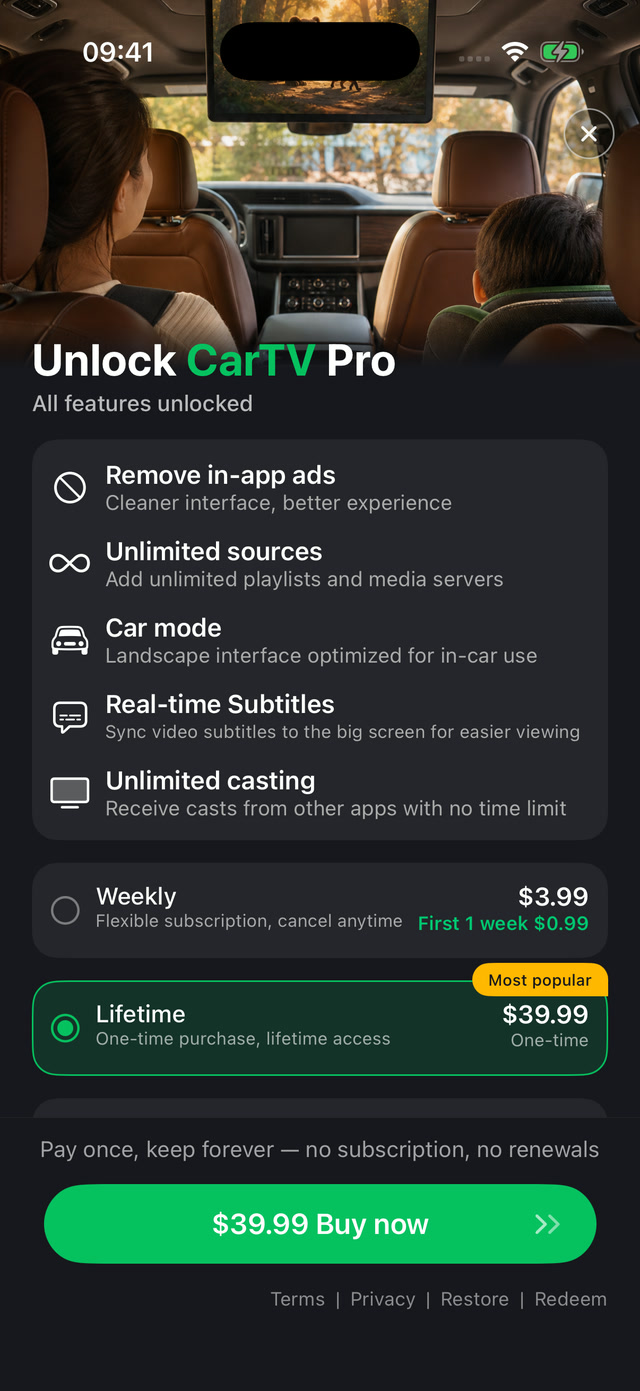
The Redeem button is at the bottom right of the VIP page. -
Enter your offer code
Type or paste the code you received into Apple's redemption screen, then tap Continue to view the offer.

Use your own code. ALEX88 in the screenshot is an example. -
Confirm the free offer
Check that the App Store shows your product with a Free offer. Tap Redeem Offer and follow Apple's instructions to complete redemption.

Free redemption example. Your offer is subject to the details shown by the App Store.
Screenshots show the English interface. Button names may differ with your device language. The product, price and eligibility shown by the App Store apply to your offer.
Need a hand?
If your code is not accepted, check that you copied it correctly and ask the person who shared it whether it is still available. For help with CarTV, contact our support team.